
How to configure static files in Django 1.8?
When I started learning Django I ran into a very annoying problem, configuring static files, such as images, style sheets and Javascript files, I had to Google for a while until I was finally able to find the solution after a few days of trying. That’s why I wanted to write this little post explaining how to do it.
I assume that the reader has already started his Django project with the command django-admin startproject <name_project> and that he has previously created (and registered in settings.py) his application with python manage.py startapp <name_app>. With this in mind let’s continue, open your settings.py file and include the following lines at the end of it:
   #Configuring static files in Django
   STATICFILES_DIRS = (
       os.path.join(BASE_DIR, 'media'),
   )
   MEDIA_ROOT = os.path.join(BASE_DIR, 'media')
In the first line we are telling Django that the directory of static files will be located in <name_project>/media and in the second line we are telling it that the root of the static files will be <name_project>/media, that is, the root of our project as such.
We must then go to the root of our project and create the media folder. It is somewhat redundant to have to specify where it will be saved, and the root where it will be saved. But you already know what Python is like…
…Explicit is better than implicit.
Ready, we have finished configuring our static files. Now, for example, when we want to use them in the templates, just do:
-
Template file: _inside the
mediafolder I made another folder calledcss, notice how I used thestatictag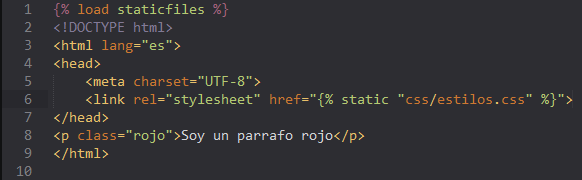
-
Style sheet: called
styles.csspresent inmedia/css
When we use the load staticfiles tag we load the path of our static files directory, that is, <name_project>/media, then every time we write a static tag we will be referencing that path.
Well, that’s all for now. If you have any questions, comments or concerns, or simply want to contribute something, you can leave your comment below. In the next post I will teach you how to configure Django 1.8 on Windows.
print("See you soon")Translated using GPT 5.3 Codex