
How to configure Django 1.8 on Windows?
Working with Python on any Windows distribution can be a headache if the correct configuration is not made in said operating system. The first time I installed Python on my laptop was truly an ordeal, it was very frustrating since all that the console gave me when I typed ‘python’ was an ‘error, unrecognized command’, well, I was stuck for a few days, and I also didn’t want to use Linux, since if I chose that option, I had to: install some distribution, my IDES and my text editors on it. It just seemed like a lot of work to me.
But hey, this post tries to explain how to configure Django 1.8 on Windows, not Python; So I assume that the reader has Python installed and configured correctly on their machine. If not, I recommend this entry, they explain the installation of said language very well, in addition to the great pip package and the virtual-env. If you still don’t have pip and you work in Python, what are you waiting for to download it? Having said that, let’s continue:
-
Open the Windows console and write:
pip install django==1.8, isn’t it simple?
-
Now try putting this in your console:
django-admin --version. You should get something likedjango-admin command not found.
This happens because we must configure the Windows environment variables. Let’s get to it:
-
Click on start, and then left click on computer, go to properties.
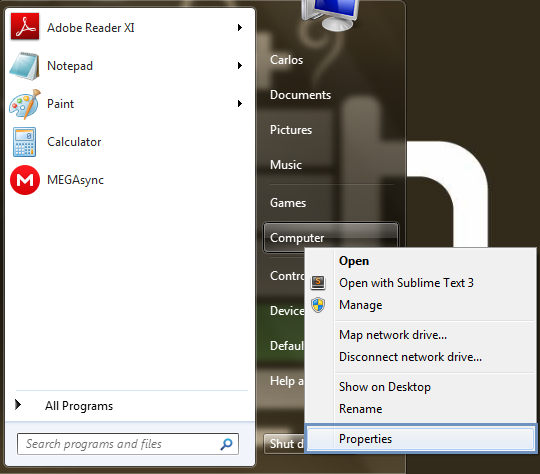
-
We wait for the window to open and click where it says ‘Advanced system configuration’
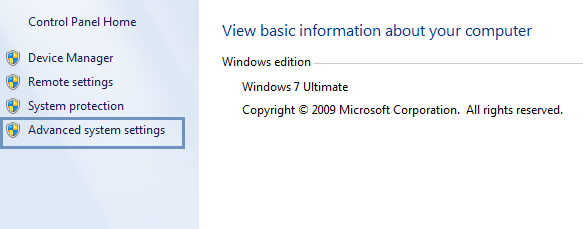
-
A window will open where we must click on
Environment variables.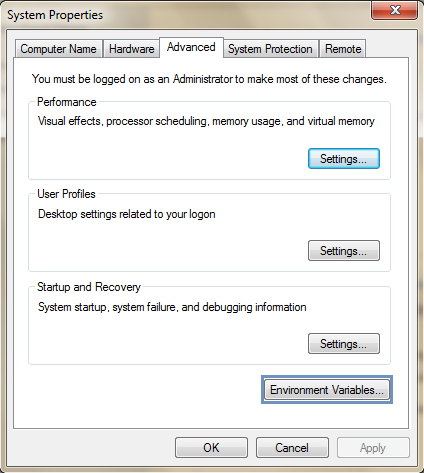
-
Select the variable called
Pathat the bottom, then click edit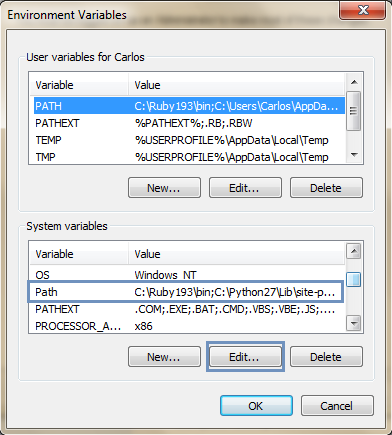
-
A small window will open. In the part that says
Variable valuego to the end, put a ‘semicolon’ followed by the path where the Scripts folder is, said folder is inside the folder where Python was installed, in my case it was inC:\Python27\Scripts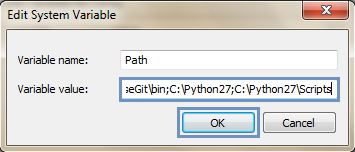
-
Finally, click Accept to everything.
Now let’s test if it worked, open a new prompt and put the command django-admin --version again, it should give you the version that you have downloaded of Django, in our case version 1.8
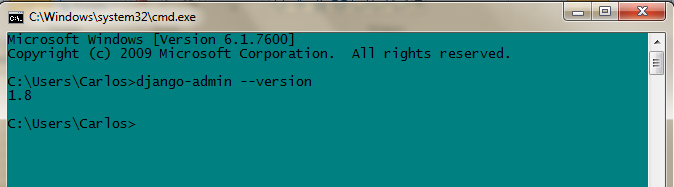
It is a bit long, but it is not difficult to do, if you have any problems with the previous steps, do not hesitate to leave a comment below, I will respond as soon as possible. In the following posts, to make things interesting, we will start programming an intermediate level Django app.
print("See you soon")Translated using GPT 5.3 Codex