
The Library, application in Django 1.8 | Part V
- The Library, application in Django 1.8 | Part I
- The Library, application in Django 1.8 | Part II
- The Library, application in Django 1.8 | Part III
- The Library, application in Django 1.8 | Part IV
- The Library, application in Django 1.8 | Part V
- The Library, application in Django 1.8 | Part VI
- The Library, application in Django 1.8 | Part VII
Introduction
We have reached part V of this series of posts where we are building an application from scratch using Django 1.8, in the previous entry we talked a little about the architecture that the framework manages, and we defined two of its main components: Views and Templates; although we also talk about urls and the role they play in any Django application. I hope the theory is clear, otherwise you can read the previous post again. Today we are going to do something more practical, create templates, and we are going to integrate them with what we have done so far.
Let’s start
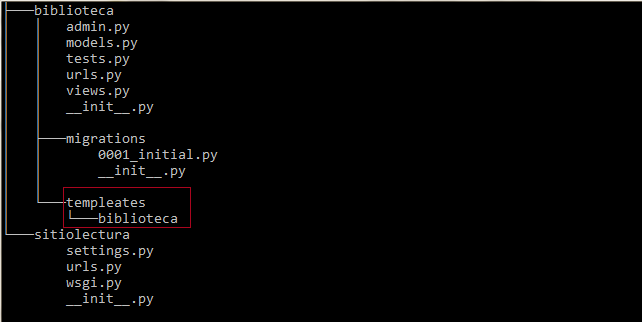
Open the application folder (you know site/library), and inside create a folder with the name you want, I will name it templates, once that folder is created, you must create another one whose name must be the same as the name of the application, in my case library. In the end you should have something like sitiolectura/library/templates/library, it is in this last folder where we will create all our templates. In an image we can see it better:
Then create a new file and name it allbooks.html and place the following:
{{ object_list }}
Let’s go to library/views.py, and create a new view:
def books(request):
	# This view is responsible for making the arrangements to display all the books in the DB in allbooks.html

all_books = Book.objects.all() #bring all the books
	context = {'object_list':all_books}
	return render(request, 'library/allbooks.html', context) #return an HttpResponse
Things to say up to here:
- We have created a view function called books
- all_books is a variable that stores all the books in the database, we are making use of the api for models provided by Django,
Book.objects.all()is equivalent to doingSELECT * FROM Book. - context is a dictionary that contains a key-value pair, now we can clearly see that “object_list” is the key of said dictionary, and the value will be all the books previously consulted. This information will be used by the template that we have created to load all the books in the DB into the view.
- In the end, as in any view we return an HttpResponse object, but now we will use a shortcut, the
renderfunction returns the HttpResponse object, and receives as parameters the request object, the template associated with the view and its context.
Now we have views.py like this
from django.shortcuts import render
from django.http import HttpResponse
from library.models import Editor, Author, Book #We import the models

def first_view(request):
	return HttpResponse("Hello, I'm your first view")

def books(request):
	all_books = Book.objects.all()
	context = {'object_list':all_books}
	return render('library/allbooks.html', context)
Next step is to go to library/urls.py, to construct the url associated with the view.
from django.conf.urls import include, url
from . import views #We tell Django to import the views file from this directory

urlpatterns = [
    url( r'^$' , views.first_view, name= 'first-view' ),
    url( r'^books/$', views.books, name='all-books'), #new url
]
None of what we have done will work if we do not tell Django where to look for the templates of our application, to do this we must go to settings.py, specifically in the TEMPLATES variable.
TEMPLATES = [
    {
		#...
        'DIRS': [os.path.join(BASE_DIR, 'templates')],
        #...
    }
]
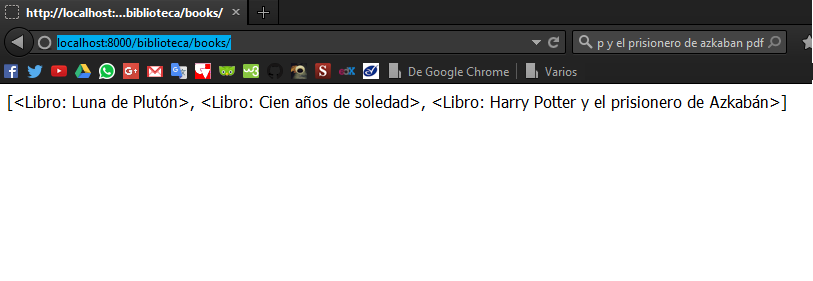
With the above, we can now go to the browser and place localhost:8000/library/books in the navigation bar.
Things to say here:
-
I have previously created 3 books through the administration interface, we can see them in the previous image.
-
Now we realize what “object_list” means (the only thing we have put in the template), the context key has the same name, which allows us to access the query made to the database.
-
We see that the result of the query is an array of Book objects, very convenient since we can go through it with a loop to show each of the attributes of the objects.
-
Remember the magic
_unicode_method we included in every model? (we did this in this entry), now we can see its usefulness, without this method, we would not be able to identify the books by name (Chronicles of a Dead Foretold, Moon of Pluto…), it is useful to know which objects are inside the arrangement, and it is a good practice.
How about we make things more interesting?
We are going to create a view that allows us to have the details of each book, to do this we open library/views.py and add the following function
def detail_book(request, id_book):
	book = Book.objects.get(id=book_id)
	context = {'object':book}
	return render(request, 'library/detailbook.html', context)
The new view function detail_book receives two arguments: the request and the id of the book that you want to detail. In the templates directory, create a new file called detailbook.html and inside it place
{{ object.id }} {{ object.title }} {{ object.editor }} {{ object.authors.get }}
Now let’s go to library/urls.py and associate a new url to the details view
from django.conf.urls import include, url
from . import views #We tell Django to import the views file from this directory

urlpatterns = [
    url( r'^$' , views.first_view, name= 'first-view' ),
    url( r'^books/$', views.books, name='all-books'),
    url(r'^books/(\d+)/$', views.detail_book, name='detail-book'),#url for details
]
I recommend that you study a little regular expressions in python, it will help you a lot to know how to build them.
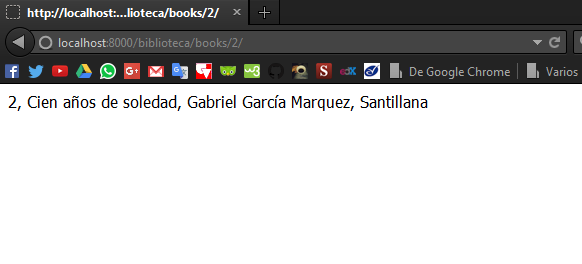
Finally we run the development server and in the navigation bar we put http://localhost:8000/biblioteca/books/2/ to see the details of book 2.
That’s all for now, in the next entry we are going to create and update Books, but this time with the help of the famous Generic Views, we are also going to show the information of the Books a little better. If you have any questions, you can leave them below in the comments. See you another time.
print("See you soon")Translated using GPT 5.3 Codex